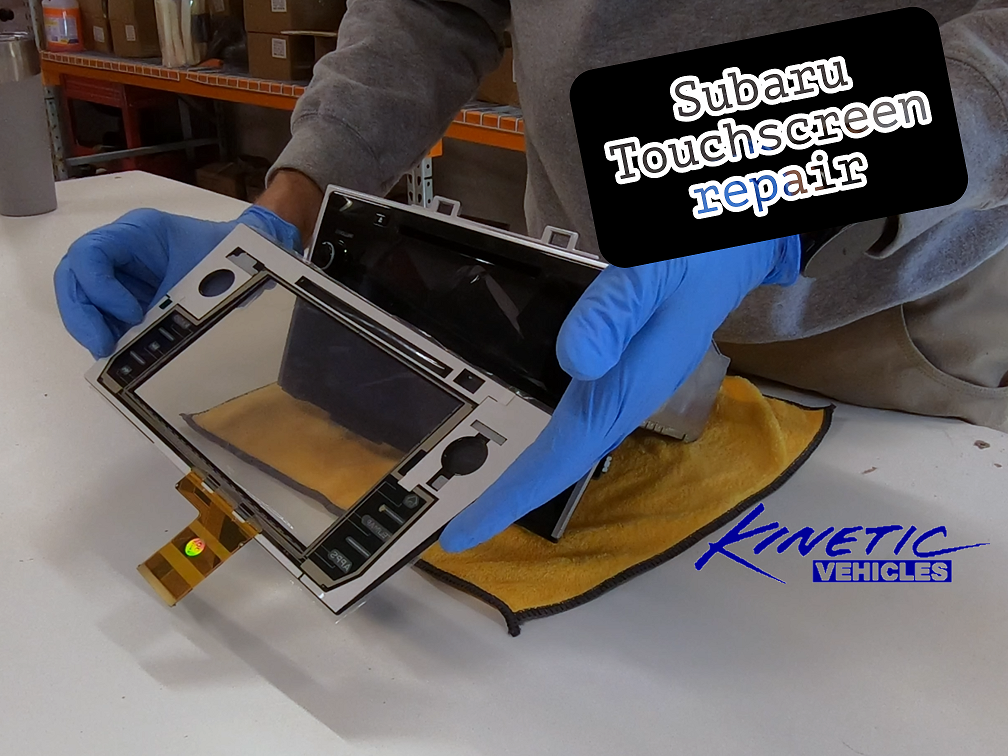

How to fix Apple carplay or Android Auto
If Apple CarPlay or Android Auto stopped working after your Subaru radio was removed, repaired, or reinstalled, the radio itself may be fine. Before replacing parts or spending hours troubleshooting your phone, check one easy-to-miss connection on the back of the head unit.
The short answer: the back of the radio has three identical black sockets. The vehicle's USB cable must be connected to the correct one. If it is plugged into either of the other two sockets, the radio can appear to work normally while CarPlay and Android Auto do not connect.
Why CarPlay or Android Auto Can Stop Working After Radio Removal
Your phone connects to the Subaru infotainment system through the vehicle's USB port. Behind the dash, that USB connection continues to the back of the radio.
The confusing part is that the radio has three black sockets that look the same. The plug can physically fit into the wrong socket, so it is possible to reconnect everything, turn on the radio, and assume the installation is complete. Audio, the touchscreen, and other radio functions may work, but the USB data connection needed for Apple CarPlay or Android Auto will not.
This is especially worth checking when CarPlay or Android Auto worked before the radio was removed and stopped working immediately after it was reinstalled.
First, Rule Out the Simple Problems
If the radio has not recently been removed, start with the usual checks:
- Unlock your phone and confirm that CarPlay or Android Auto is enabled.
- Try a different USB cable that supports data, not just charging.
- Inspect the USB port for dirt or damage.
- Restart the phone and the infotainment system.
- Test another compatible phone if one is available.
If your phone charges but CarPlay or Android Auto still does not launch—and the problem began after radio work—the rear USB connection should be high on the list.
How to Correct the Connection
- Turn the vehicle off. Follow the proper radio-removal procedure for your Subaru before working behind the dash.
- Remove the radio far enough to inspect the rear connections. Do not pull hard on the wiring harnesses.
- Locate the three matching black sockets. Watch the video above to identify the correct location for the USB plug.
- Move the USB cable to the correct socket. Make sure the connector is straight and fully seated.
- Test before reassembling the dash. Reconnect your phone with a known-good data cable and confirm that CarPlay or Android Auto opens.
- Reinstall the radio and trim. Once everything works, carefully finish the installation.
Do not force a connector. If anything does not fit easily or the wiring in your vehicle does not match what is shown in the video, stop and verify the radio model and connector layout.
What If It Still Does Not Work?
If the USB plug is in the correct socket and fully seated, check the phone cable and dash USB port again. A charging-only cable can supply power without carrying the data required for CarPlay or Android Auto. A damaged vehicle USB port or cable can cause the same symptom.
Also check every connector disturbed during the radio removal. A plug that looks connected may not be completely latched. If the touchscreen is making selections on its own, freezing, bubbling, or showing an oily-looking area under the glass, that is a different problem and may indicate touchscreen delamination.
A Quick Check Can Save a Lot of Troubleshooting
When Apple CarPlay or Android Auto quits working immediately after a Subaru radio repair or reinstall, do not assume the repaired radio has failed. With three identical sockets on the back, the USB cable can easily end up in the wrong location. Putting it in the correct socket may be all that is needed to restore the connection.
If your Subaru touchscreen also has bubbles, ghost touches, random button presses, or poor response, see the Subaru touchscreen repair and replacement options from Kinetic Vehicles.
Touchscreen installation tips
What if I do not have the Harman Kardon radio in my 2018 2019 Subaru Outback
Related Posts
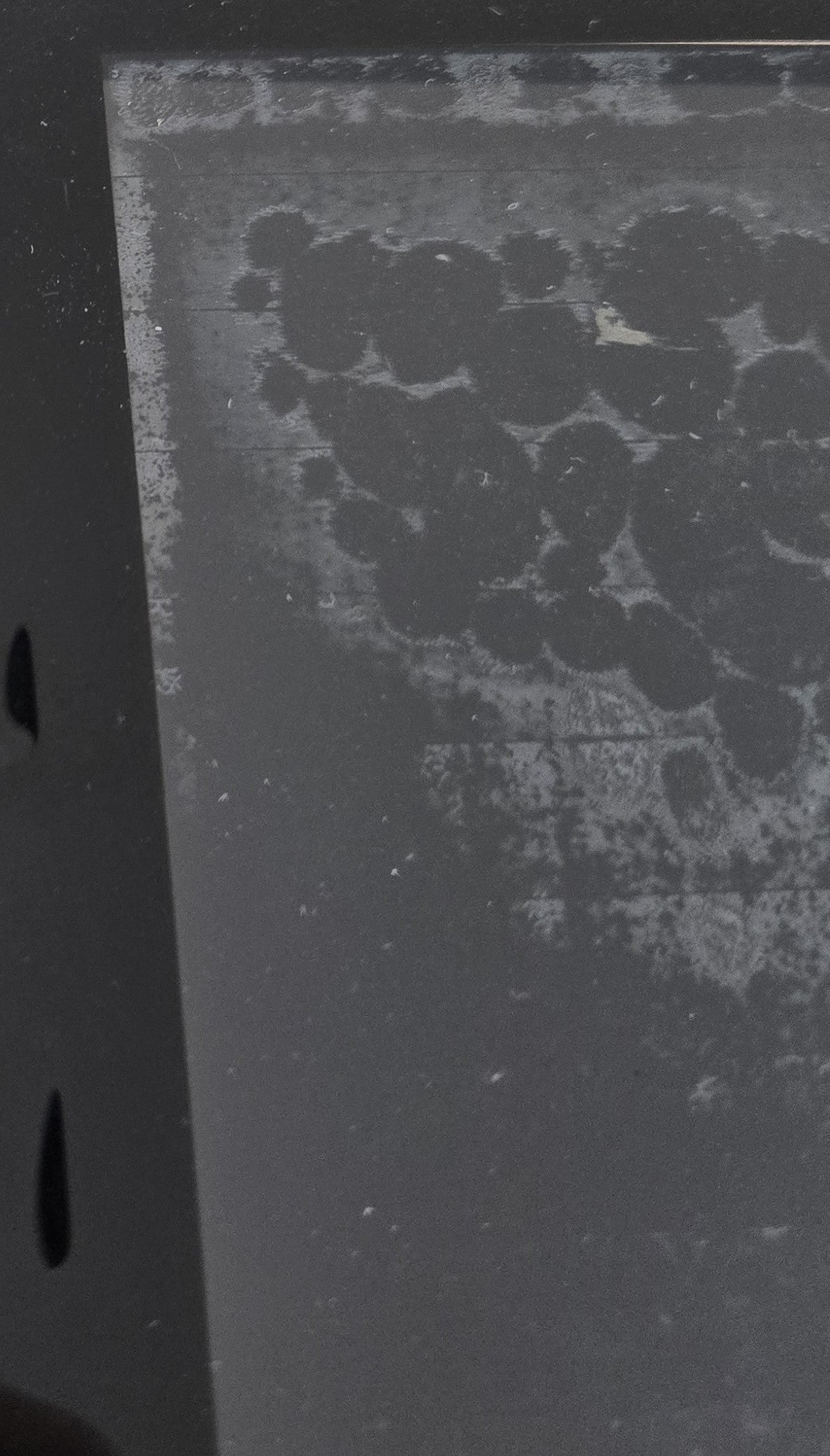
Is Your Subaru Outback Touchscreen Going Crazy? It Might Be Delaminating

What if I do not have the Harman Kardon radio in my 2018 2019 Subaru Outback
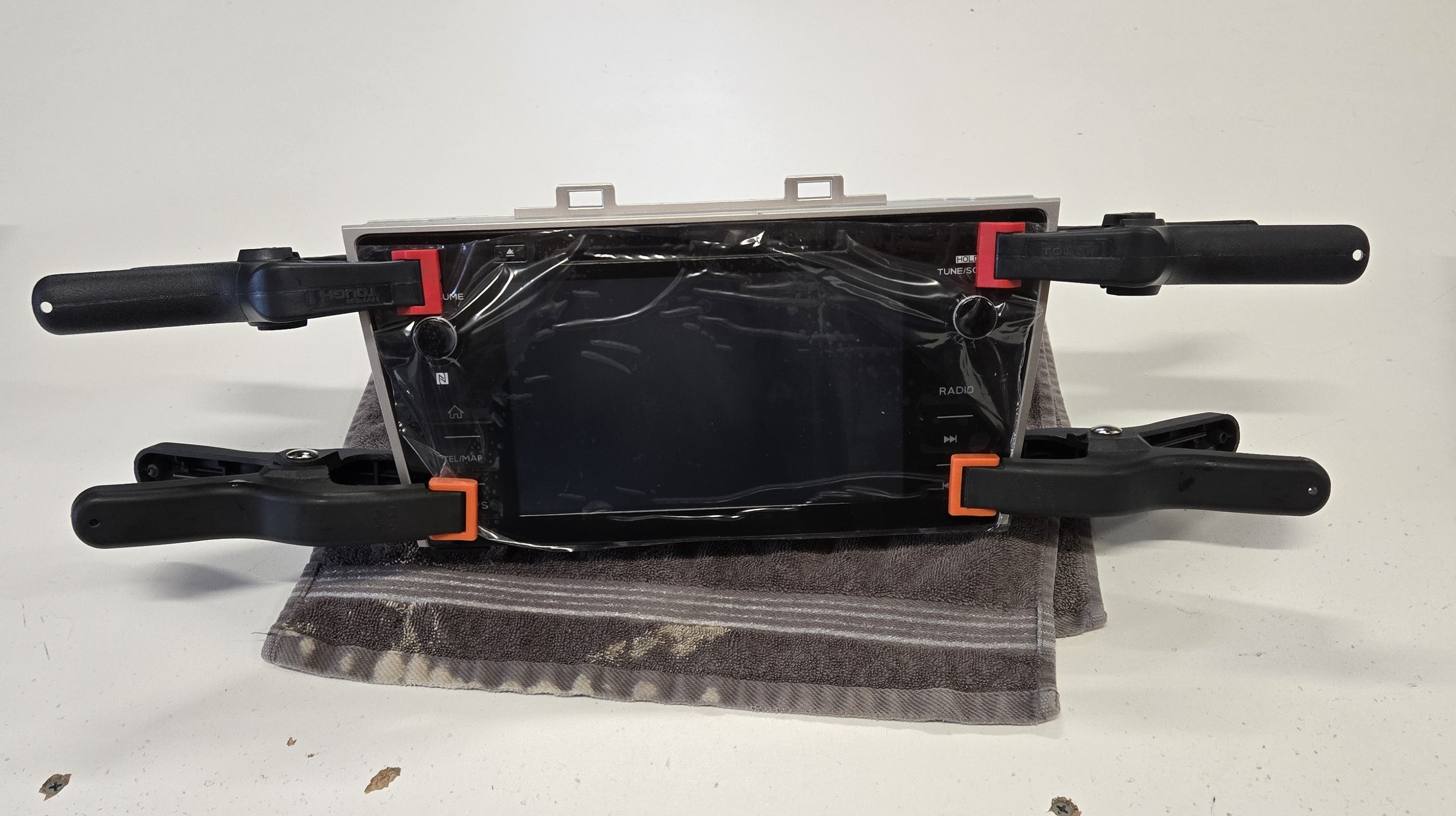
Touchscreen installation tips
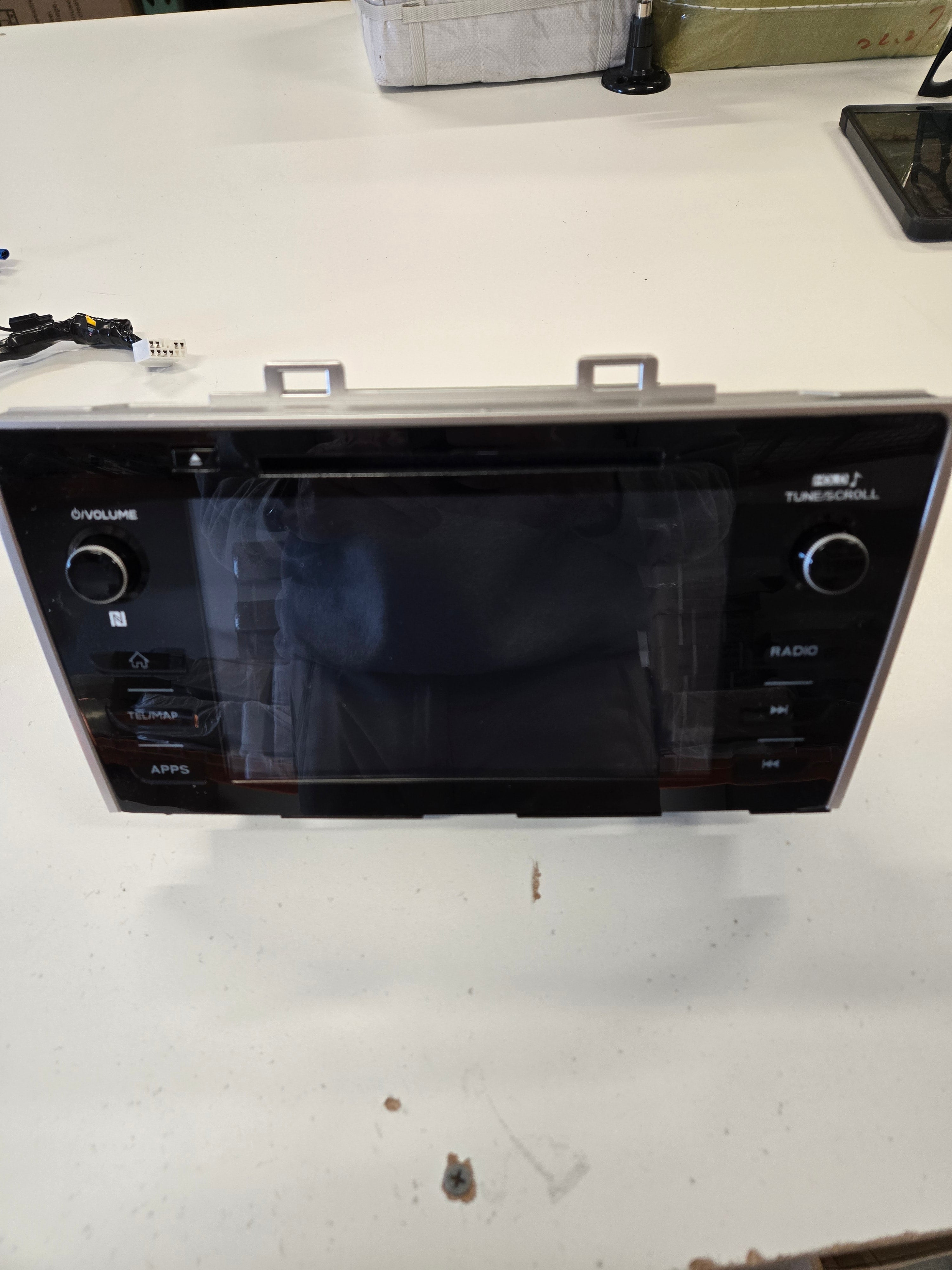
2018 2019 Subaru Outback and Legacy Radio Screen Delamination: Troubleshooting Your Infotainment Issues
Can you fix my Subaru radio?